
Special rights for MitID
When reporting to a number of specific statistics, you are required to have MitID Erhverv with special rights for those statistics. This applies, for example, to reporting to Lønstatistik (Earnings), Fravær (Absence from work) and a number of statistics about social services.
Here you can read about how to request these special rights from your company's/organisation's rights administrator, how to find the rights administrator, and how the rights are granted.
NB: In order to assign rights, you must be a rights administrator.
Contact your rights administrator
To begin the process of requesting special rights, you must contact your rights administrator (see the guide Find your organisation’s rights administrator if necessary). The rights administrator must first grant you access to apply for the special rights. Once access has been granted, you can follow the instructions below.
NB: Your rights administrator can also grant you the special right by contacting you directly. The rights administrator must follow the guide Grant special rights to an employee who has NOT requested the special right.
|
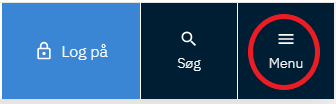
1. Go to www.virk.dk. Click on Menu. (This page is in Danish only) |
|
|
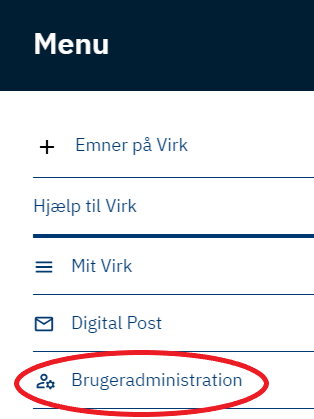
2. Click on Brugeradministration, and log in with MitID Erhverv (business). |
|
|
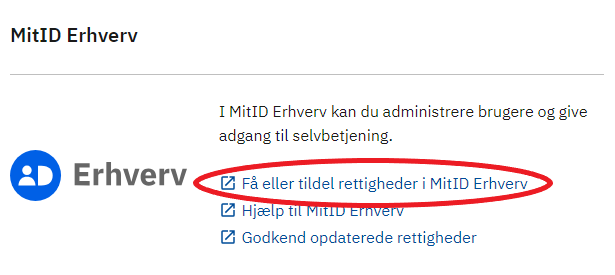
3. Click on Få eller tildel rettigheder i MitID Erhverv. |
|
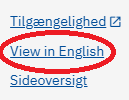
| 4. At the very bottom you can click on View in English. |
|
|
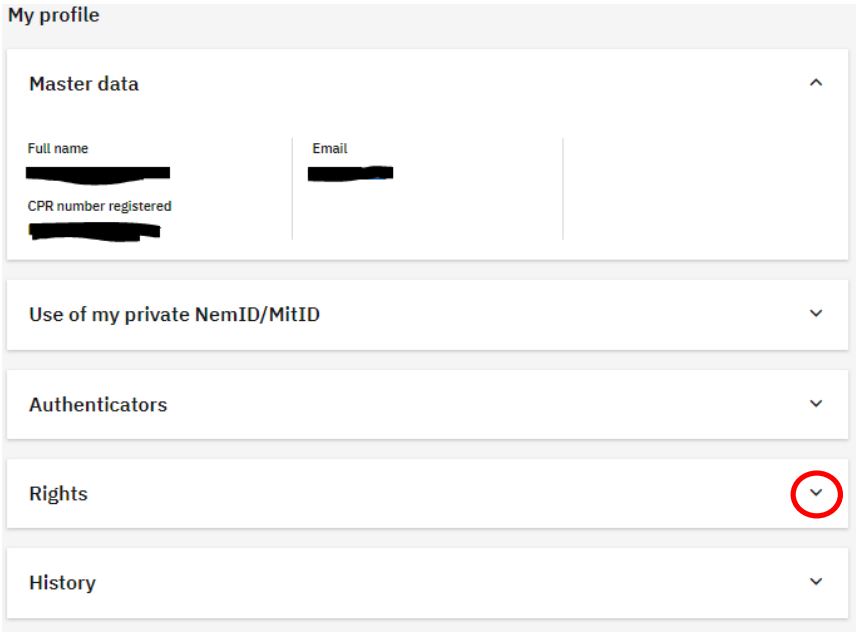
5. Click the expand button to expand the accordion Rights. |
|
|
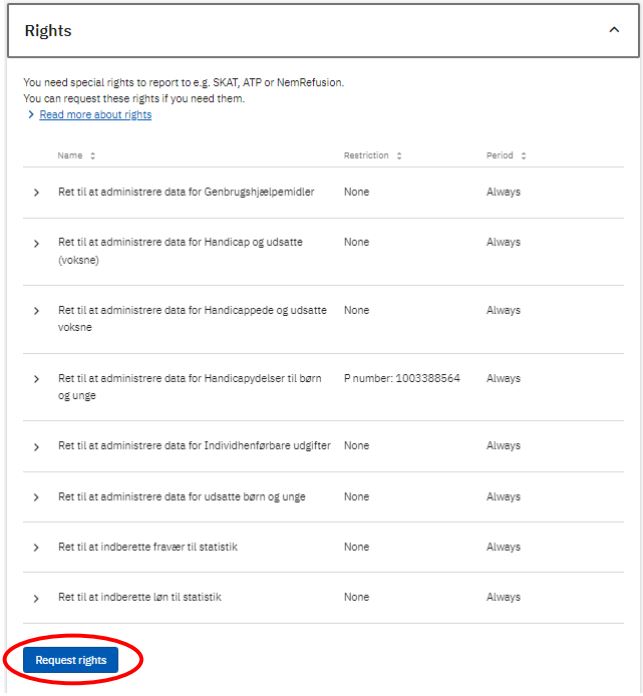
6. You should now see a list of the rights you have already been assigned (if any). Click on Request rights to access a list of all the rights for which you may apply. |
|
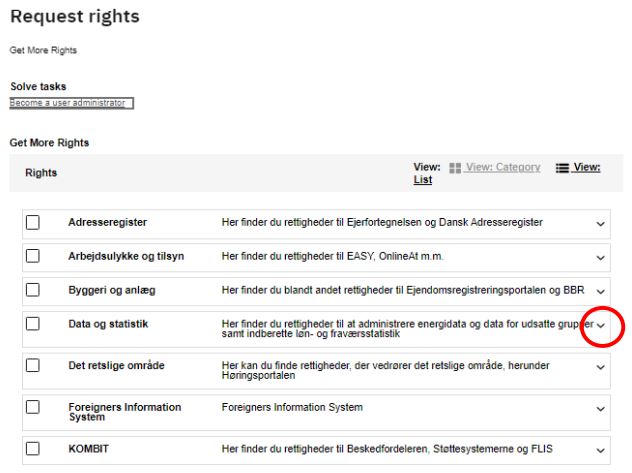
| 7. Click the expand button to expand the accordion Data og statistik. |
|
|
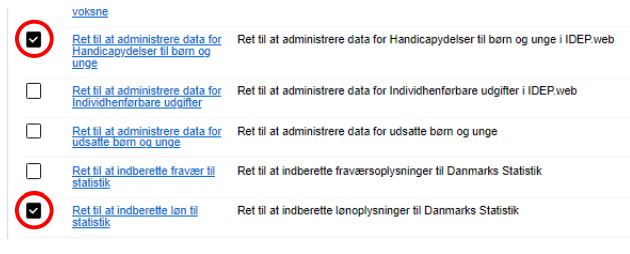
8. Check the relevant right(s) that you want to request. |
|
|
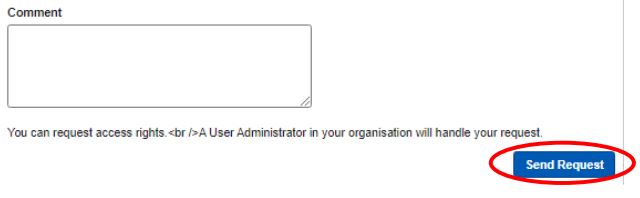
9. If applicable, provide a reason for your application (optional) – click Send request positioned in the lower right corner. |
|
|
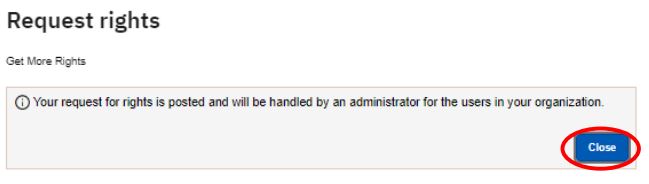
10. Your rights administrator will receive a message that there is a request. NB: Your rights administrator MUST approve the request before the rights become active. 11. Click Close. |
|
|
1. Go to www.virk.dk. Click on Menu. (This page is in Danish only) |
|
|
2. Click on Brugeradministration, and log in with MitID Erhverv (business). |
|
|
3. Click on Få eller tildel rettigheder i MitID Erhverv. |
|
| 4. At the very bottom you can click on View in English. |
|
|
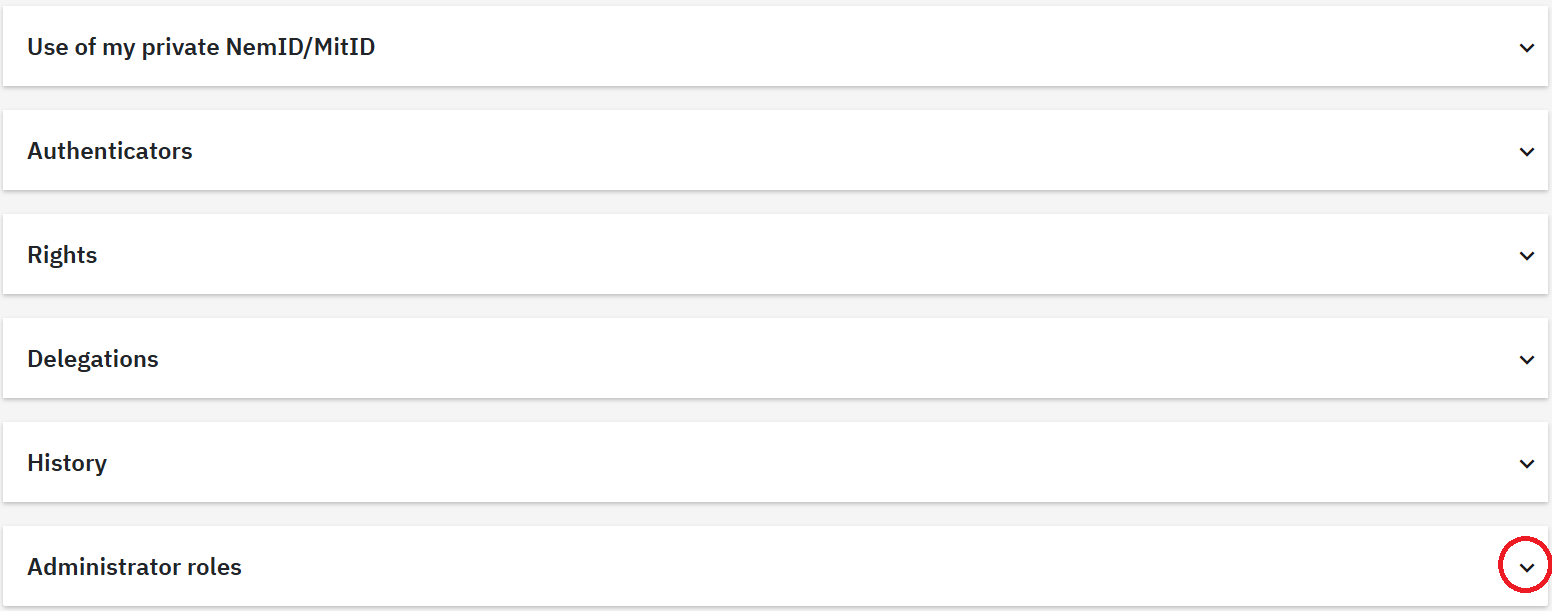
5.Under My profile scroll down and click on the accordion Administrator roles. |
 |
|
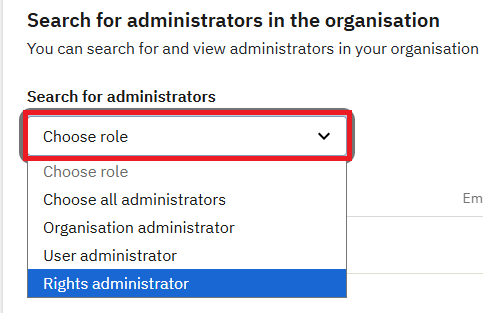
6. Under Search for administrators, click Choose role and choose Rights administrator in the drop-down menu. A list of the organisation’s rights administrator(s) will then be displayed. |
 |
Below you can find instructions on how to grant special rights:
- Grant user rights (allows users to request for special right(s))
- Grant special rights to employees who have NOT requested right(s) themselves
- Grant special rights to employees who HAVE requested right(s)
1. Grant user rights (allows users to request for special right(s))
|
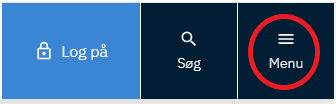
1. Go to www.virk.dk. (This page is in Danish only) Click on Menu. |
|
|
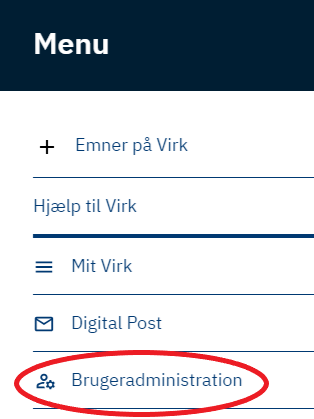
2. Click on Brugeradministration, and log in with MitID Erhverv (business). |
|
|
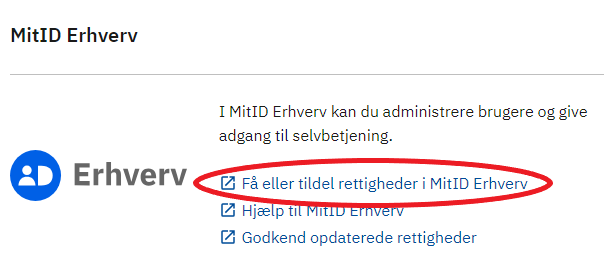
3. Click on Få eller tildel rettigheder i MitID Erhverv. |
|
|
At the very bottom you can click 'View in English'.
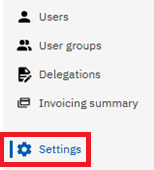
4. Click on Settings. |
|
|
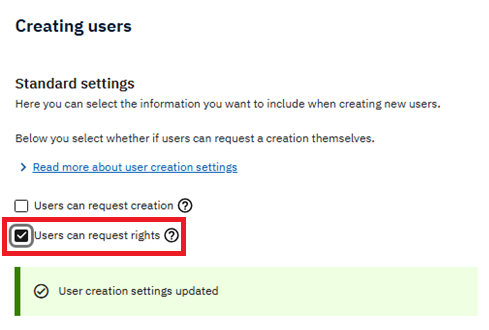
5. Under Creating users - Standard settings mark the box Users can request rights. This allows the user to apply for special rights. Please note: As a rights administrator, you can also grant special rights to the user by following this guide. In this way, the user does not need to request the rights. |
 |
2. Grant special rights to employees who have NOT requested right(s) themselves
|
1. Go to www.virk.dk. (This page is in Danish only) Click on Menu. |
|
|
2. Click on Brugeradministration, and log in with MitID Erhverv (business). |
|
|
3. Click on Få eller tildel rettigheder i MitID Erhverv. |
|
|
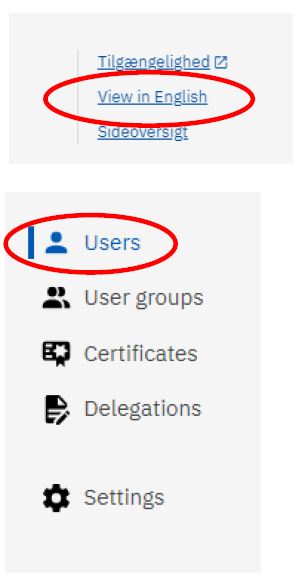
At the very bottom you can click 'View in English'.
4. Click on Users. |
 |
|
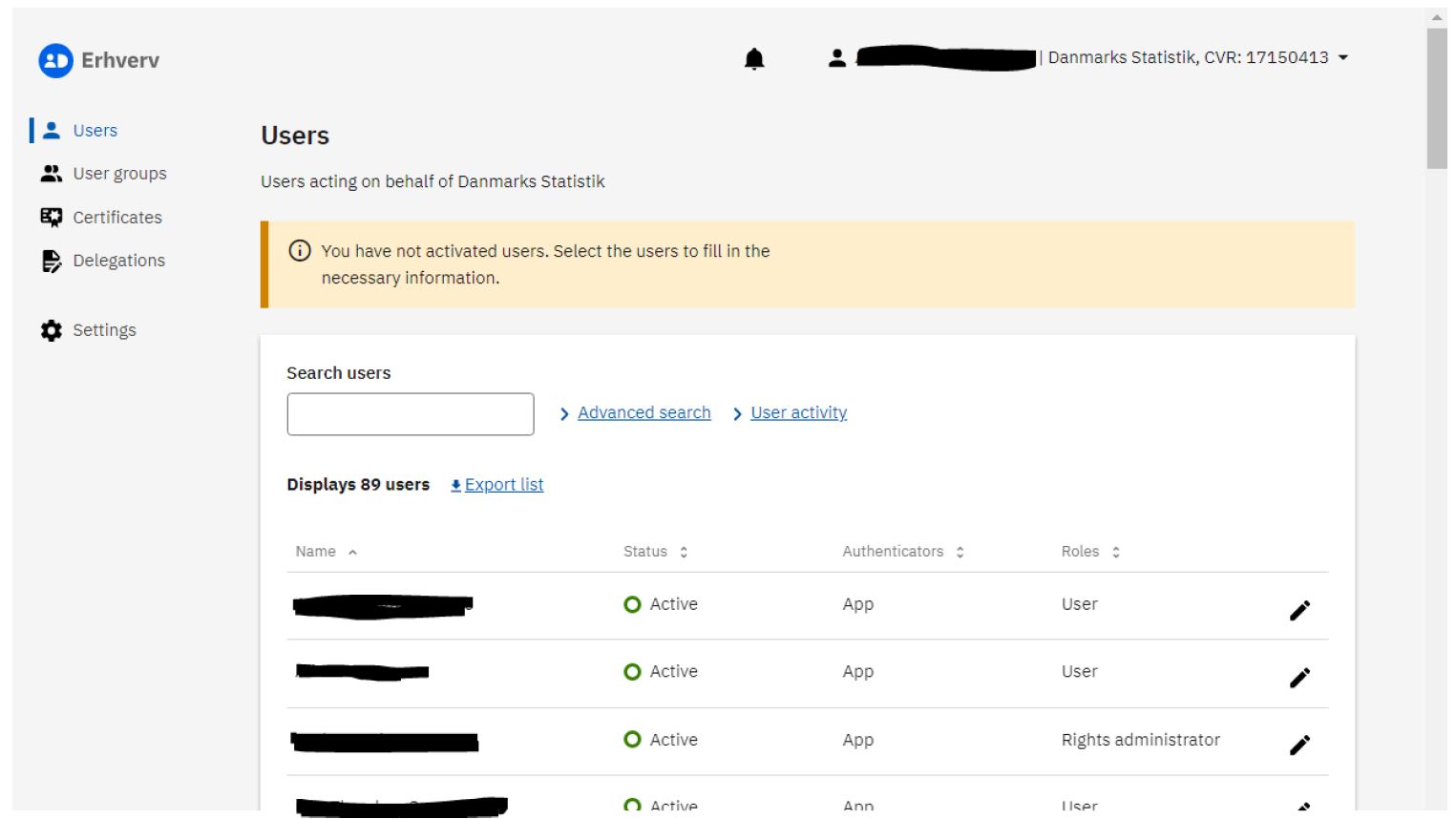
5. You should now see a list of all users in your organisation.
Click on a specific user to see detailed information about that user. |
 |
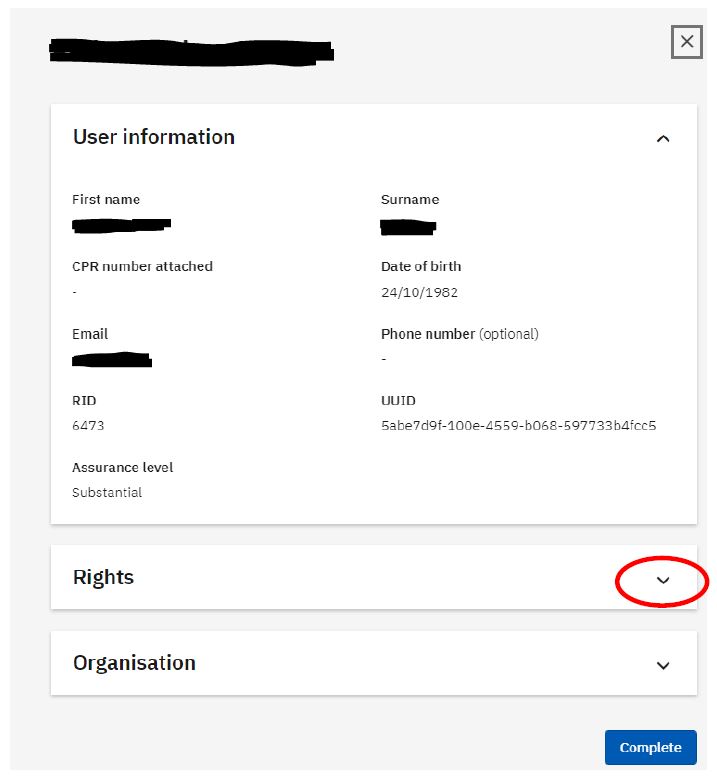
| 6. Click the expand button Rights to expand the accordion. |
 |
|
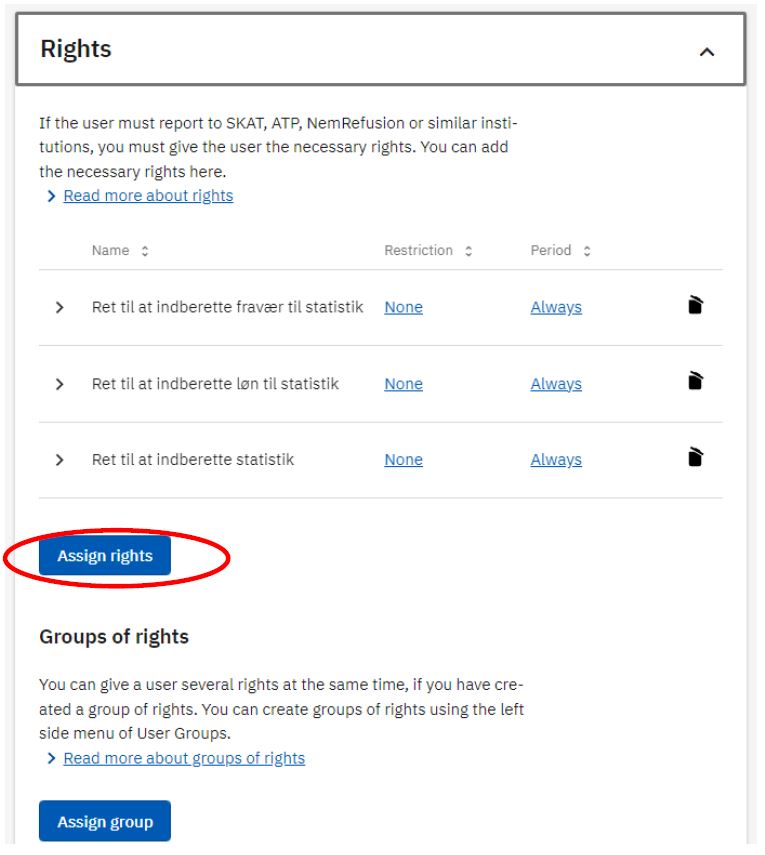
7. You should now see which rights each user already has been assigned. Click the Assign rights button to give the user additional rights. |
 |
|
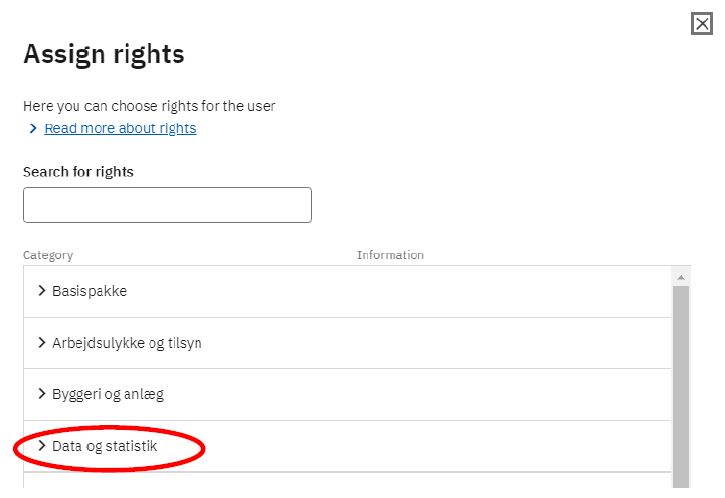
8. The rights required to be able to report to Statistics Denmark can be found in the subfolder Data og statistik. Click on this to see the available rights. |
 |
|
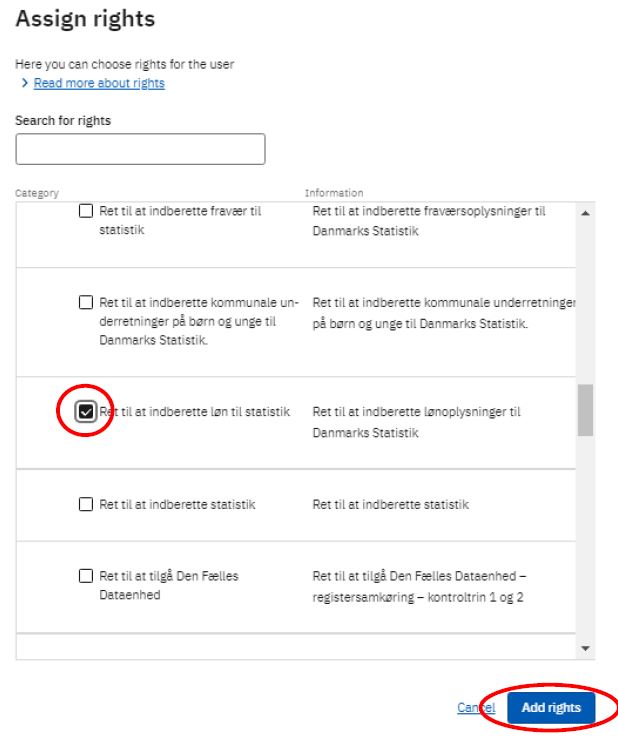
9. Check off the relevant right(s). Then click on Add rights. NB: The list in the screenshot is only showing a few of the available rights. |
 |
|
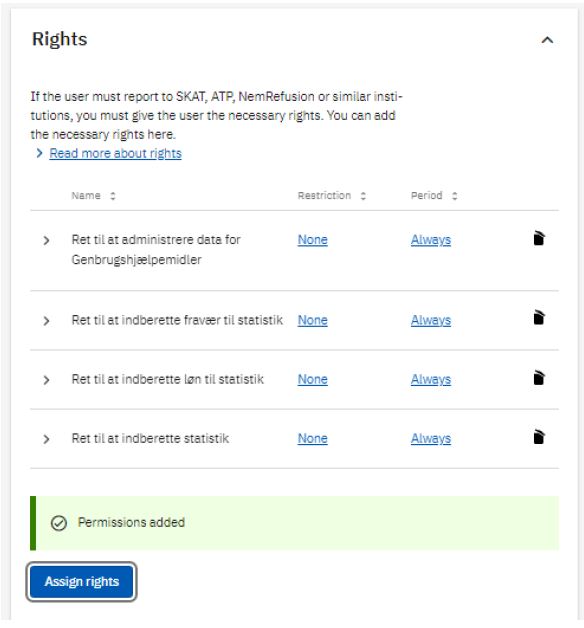
10. The right(s) have now been assigned to the user. |
 |
3. Grant special rights to employees who HAVE requested right(s)
|
1. Go to www.virk.dk. (This page is in Danish only) Click on Menu. |
|
|
2. Click on Brugeradministration, and log in with MitID Erhverv (business). |
|
|
3. Click on Få eller tildel rettigheder i MitID Erhverv. |
|
|
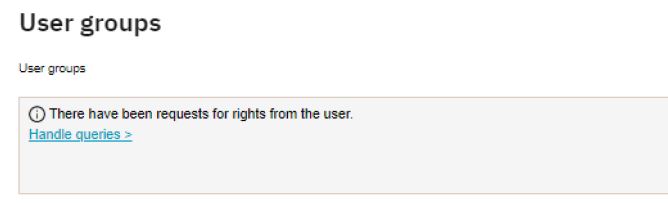
At the very bottom you can click 'View in English'. 4. A message is shown: There have been requests for rights from a user. Click on Handle queries. |
 |
|
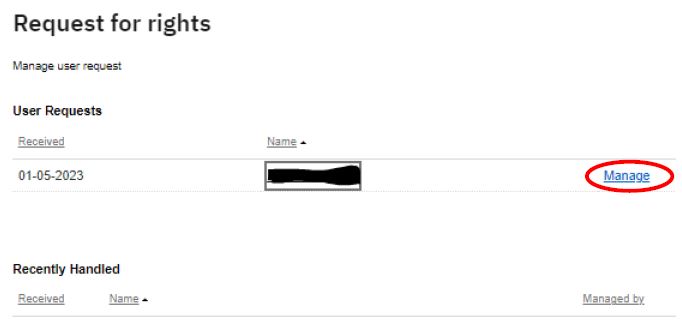
5. In the list Request for rights you can see the name of the user who sent the request.
Click on Manage. |
 |
|
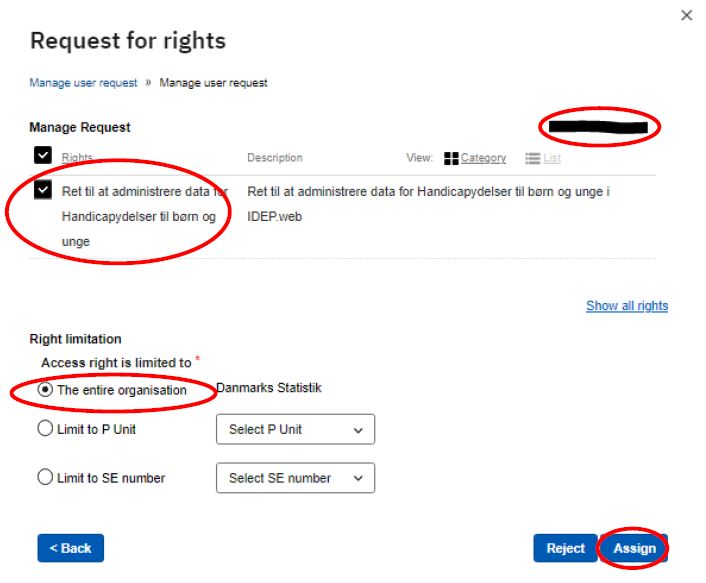
6. The name of the requested right is shown on the list of requests. NB: It is important to choose The entire organisation in the section "Right limitation". Click on Assign. |
 |
|
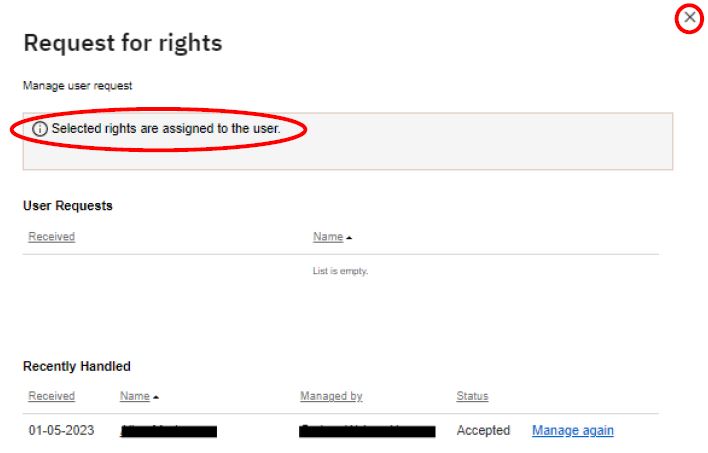
7. A message is shown indicating that the right has been assigned. Click on the cross in the upper right corner to exit. |
 |
Do you need help?
Our support team can respond to you via email or give you a call.

Extension of the deadline?
You can request an extension of the deadline via our support request form.